How to Order a Kubernetes Cluster
This guide describes the process for ordering the "Kubernetes Cluster" service on Peerobyte cloud infrastructure.
I. Make sure the prerequisites are met
To order a Kubernetes cluster, the following requirements must be met:
- You must have an account in the Peerobyte Control Panel. To learn how to register an account, see the "Creating an Account" guide.
- You must be able to pay for the service using one of the following methods: bank card, bank transfer, PayPal, or SEPA.
- You must sign in to your account on the Peerobyte website:
- If 2FA (two-factor authentication) is not enabled, follow the "Signing in to the Control Panel" guide.
- If 2FA is enabled, follow the "2FA Signing in to the Control Panel" guide.
II. Go to the Kubernetes cluster configurator
You can open the Kubernetes cluster configurator in the following ways:
From the "Dashboard"
- Go to the "Dashboard" page by selecting the relevant item from the main menu.
- In the "Place a New Order" section, find the "Kubernetes Cluster" block and click the "Deploy cluster" button.
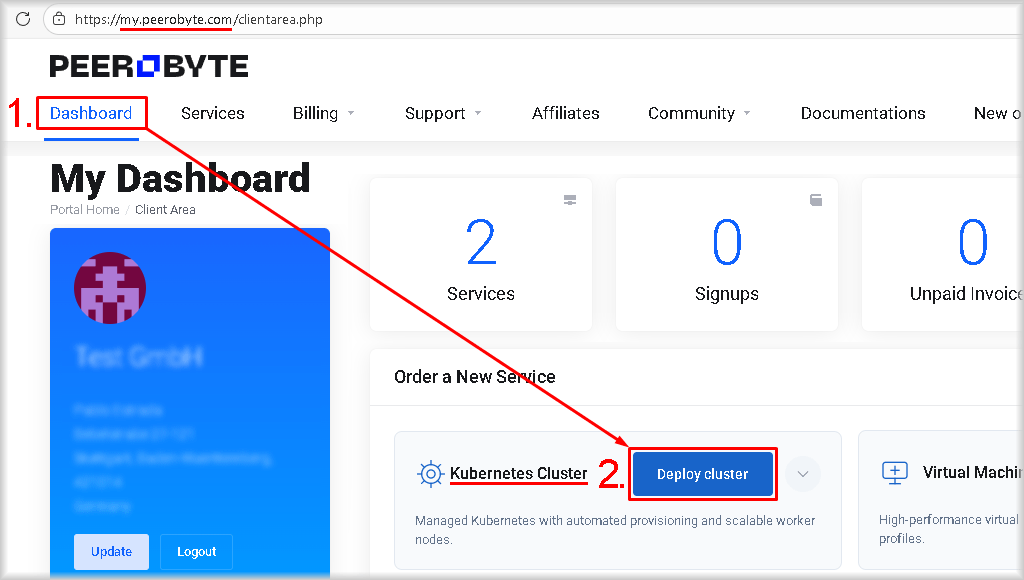
You will be taken to the "Kubernetes" configurator page.
From the main menu
- Select "New order".
The list of products available to order will open. - Select "Kubernetes Cluster".
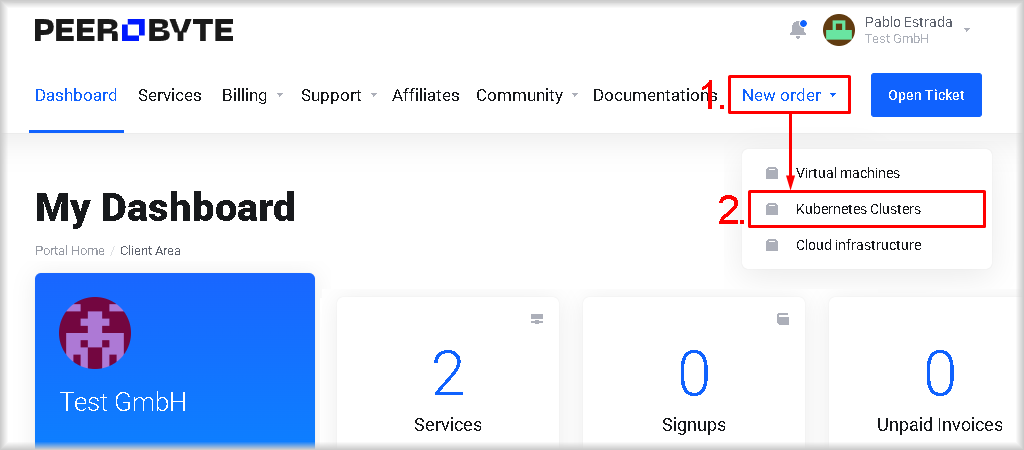
You will be taken to the "Kubernetes" configurator page.
III. Choose the cluster configuration
When you order a cluster, you specify the required configuration. Charges apply for all of these resources, whether you use them or not. Any later decrease or increase in the resources available to the cluster is handled through Peerobyte Support.
- Choose the cluster preset.
In the "K8s Cluster Preset" block, choose the cluster preset. The cluster preset defines the number of Control Plane nodes and Worker Nodes in the cluster, as well as the node configurations available in the "Node Size" list.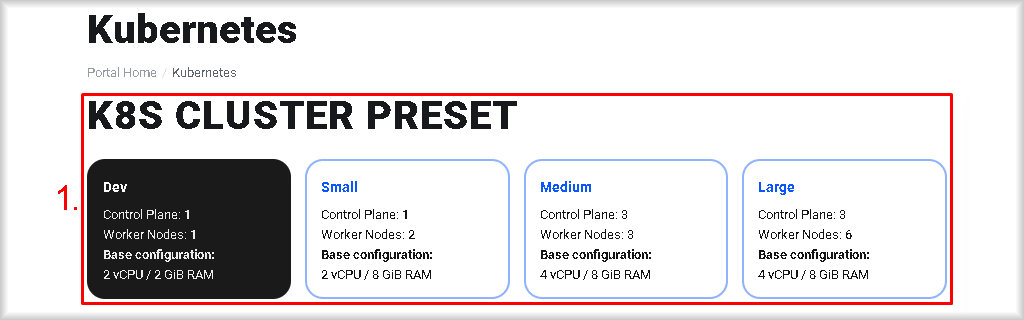
- Set the node configuration.
From the"Node Size" list in the "Nodes" block, choose the node configuration, the number of virtual CPUs (vCPU), and the amount of RAM. This configuration will be applied to both the Control Plane nodes and the Worker Nodes.
- Choose the Kubernetes version.
From the "Kubernetes version" list in the "Nodes" block, choose the Kubernetes version. The CRI-O version will match the Kubernetes version you choose. These versions will be applied to both the Control Plane nodes and the Worker Nodes.
- Specify the cluster storage settings.
In the "Storage" block, in the "Disk type" field, choose the disk type for the nodes:- Hybrid Storage – combines fast SSDs and high-capacity HDDs. Intelligent caching provides a balance between storage speed and cost. This is the best choice when you need a large amount of disk space for different tasks without paying extra for pure performance.
- All-Flash Storage – NVMe SSD-based storage that provides high speed and fast response under heavy workloads and when working with demanding databases. Because it has no mechanical parts, it provides consistently low latency and high reliability during intensive use.
Then, in the same "Storage" block, choose the disk size for the nodes by moving the "Disk size (GB)" slider. The "Disk type" and "Disk size" values you select will apply to all cluster nodes. 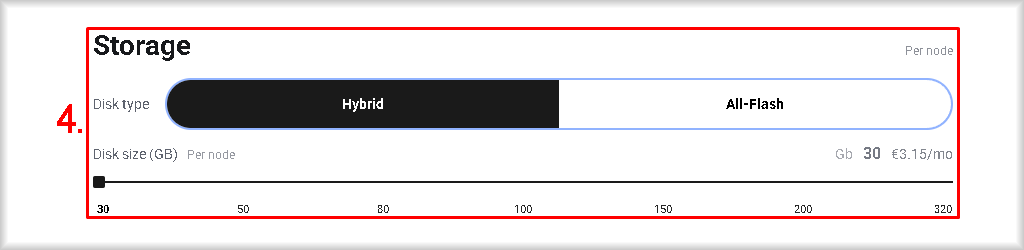
- Enable a public IP.
If your cluster needs external access, add a public IP address to the cluster by selecting the "Use public IP" checkbox.
- Confirm the order.Check that the selected cluster configuration is correct and change it if needed. Then click the "Order for…" button.
You can reduce the average monthly cost of the service if you choose a payment term of 3, 6, or 12 months (the list is available above the "Order for…" button) and pay for it upfront.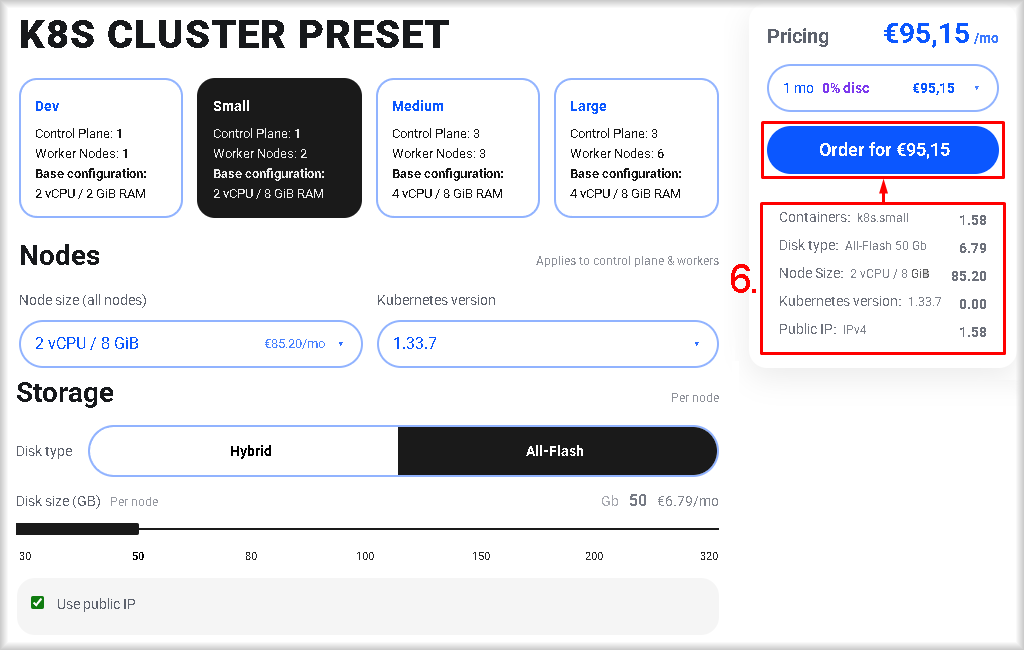
If the balance of your Peerobyte account is sufficient to pay for the order, the stated amount will be charged automatically after you click the "Order for…" button, and you will be redirected to the Peerobyte services control panel.
If the account balance is insufficient, you will be redirected to the "Checkout" page to pay the invoice.
IV. Pay for the order
Once your order has been confirmed, you must pay for it using one of the methods listed below.
Payment by bank card
- Enter your credit card information in the "Card Number", "Expiry Date", and "CVV/CVC2" fields.
- Click the "Make payment" button.
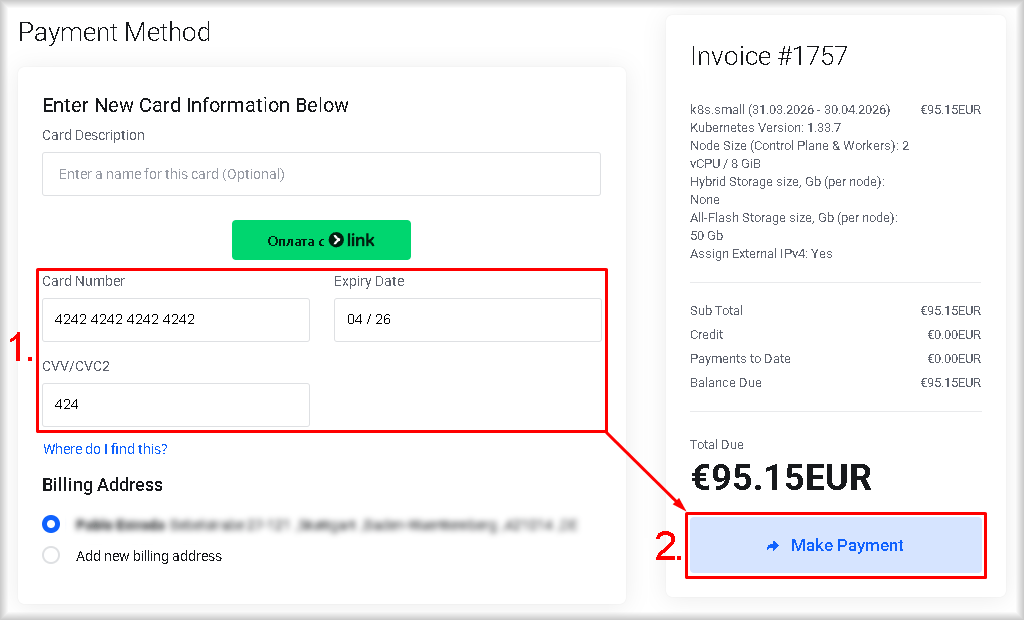
The amount shown in the "Total Due" field will be charged to your card, and automatic billing will be enabled at the end of each subsequent billing period until you cancel the service.
After successful payment, you will be redirected to the Peerobyte service control panel. A notification confirming the successful order of Kubernetes Cluster will be sent to the email address associated with your account and will also appear in your account dashboard.
Payment by bank transfer, PayPal, or SEPA
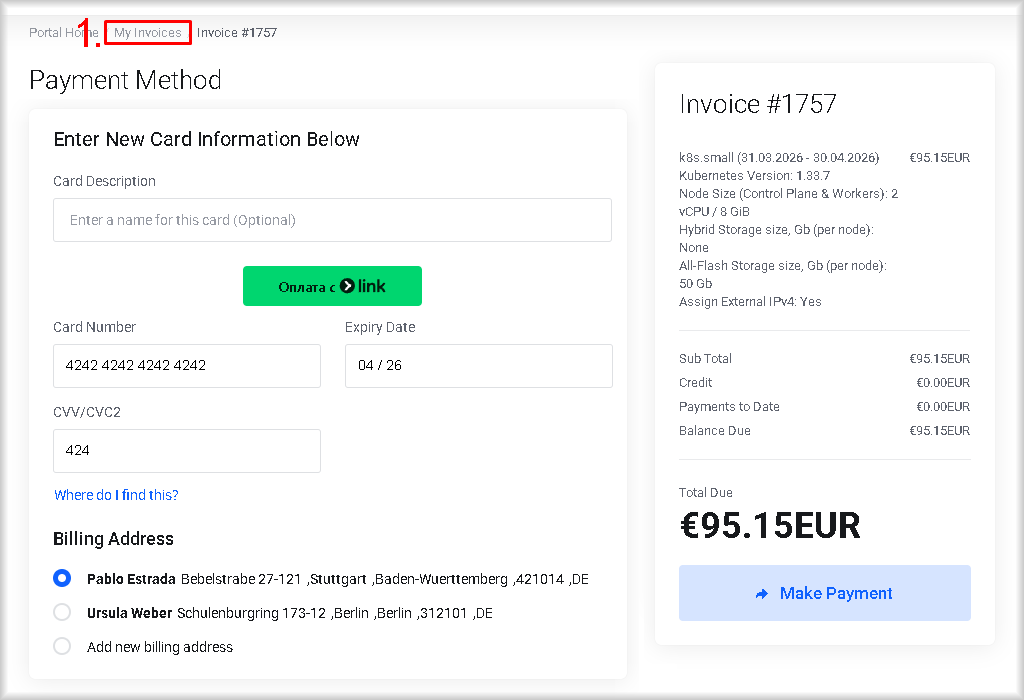
- Go to the "My Invoices" section, and you'll be taken to the unpaid invoice for your most recent order.
- Select a payment method and follow the instructions for the option you've chosen:
- PayPal or SEPA – from the "Payment Method" list, select "PayPal" and click "Pay Now". Then, in the window that opens, select "Pay with PayPal" or "Pay with SEPA".
- Bank Transfer – click "Download", save the invoice, and pay it by bank transfer.
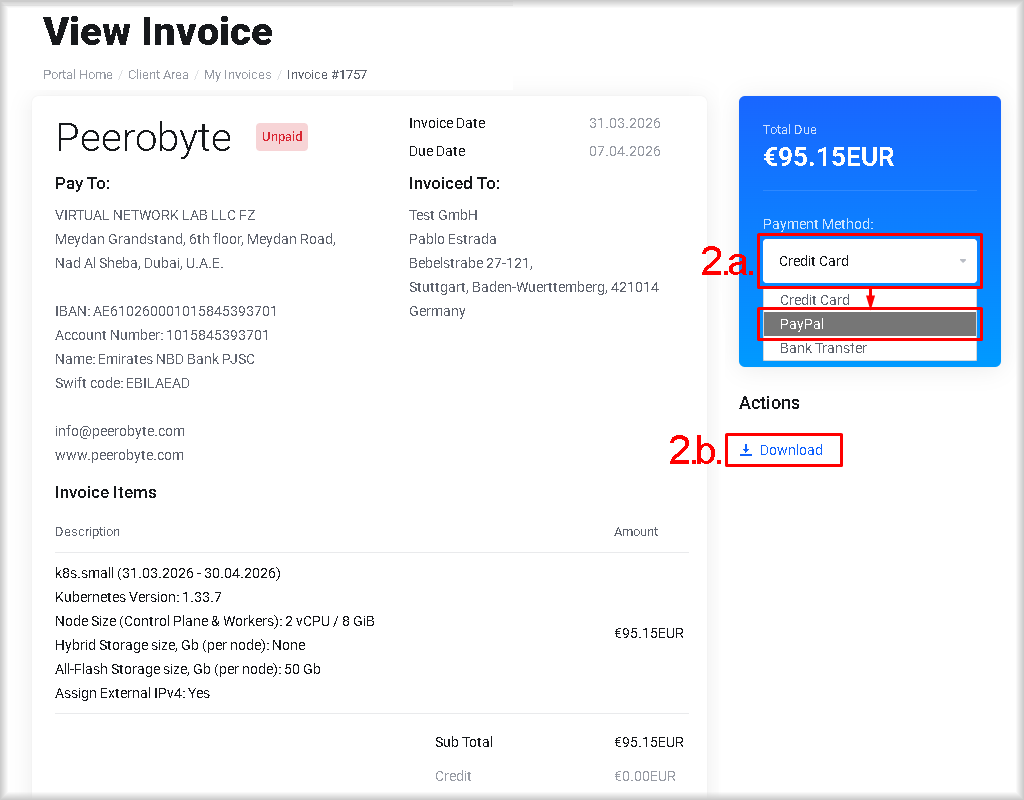
Once payment is received by Peerobyte, the Kubernetes cluster will be deployed automatically. A notification will be sent to the email address associated with your Peerobyte account and will also appear in your account dashboard.